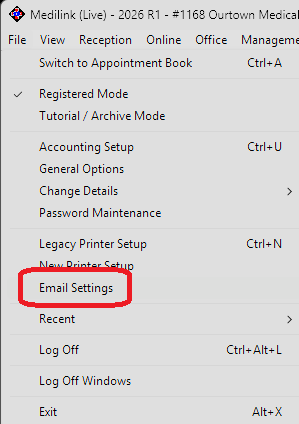
From the Medilink Accounting (Patient Details) Screen, go to File Menu, Email Settings.
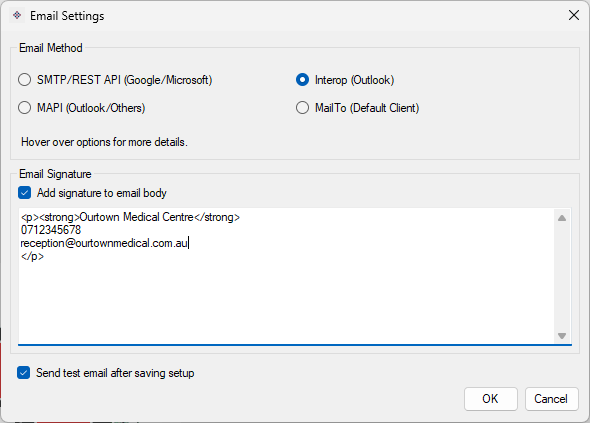
You will have 4 options which will be explained further below.
- SMTP/REST API (Google/Microsoft)
- Interop (Outlook)
- MAPI (Outlook/Others)
- MailTo (Default Email Client)
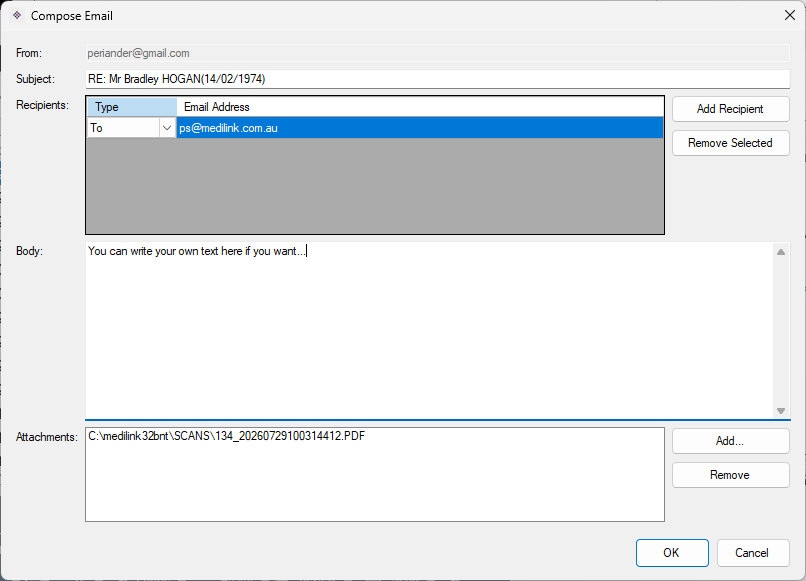
SMTP/REST API (Google/Microsoft)
This is the only option that will allow for streamlined (no app) sending of emails from Medilink. SMTP in theory will work for all providers, however, many have added extra authentication steps which will be natively blocked from desktop apps like Medilink. We have implemented both SMTP and REST API integrations to Google Gmail and Microsoft email platforms, so if your practice email address uses these then they will prompt for credentials and send. If you have problems sending, go back to Email Settings and do the Clear Token Cache option.
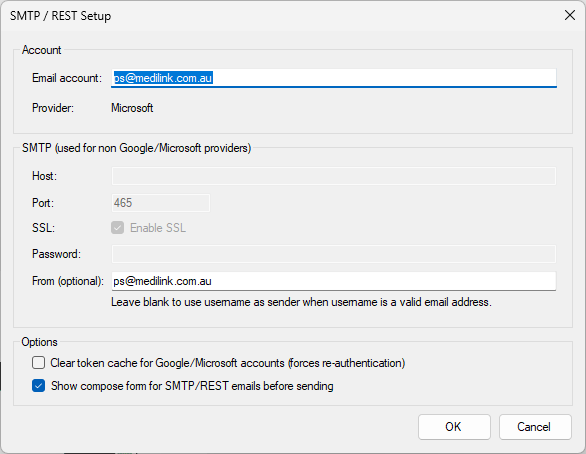
Interop (Outlook)
This method will open Outlook and show you a compose email box. It will include attachments, for example if you email a document from DMS. Note that New Outlook does not work with Interop, you must use Classic Outlook.
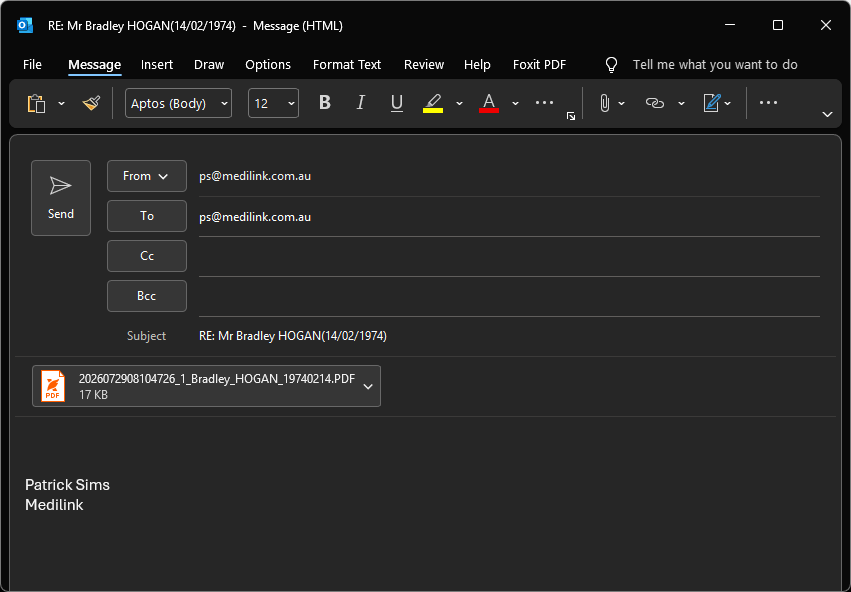
MAPI (Outlook/Others)
This is like Interop but in theory can work with other email clients like Thunderbird etc. Note that if you use the New Outlook it won't let you send attachments from Medilink directly.
MailTo (Default Email Client)
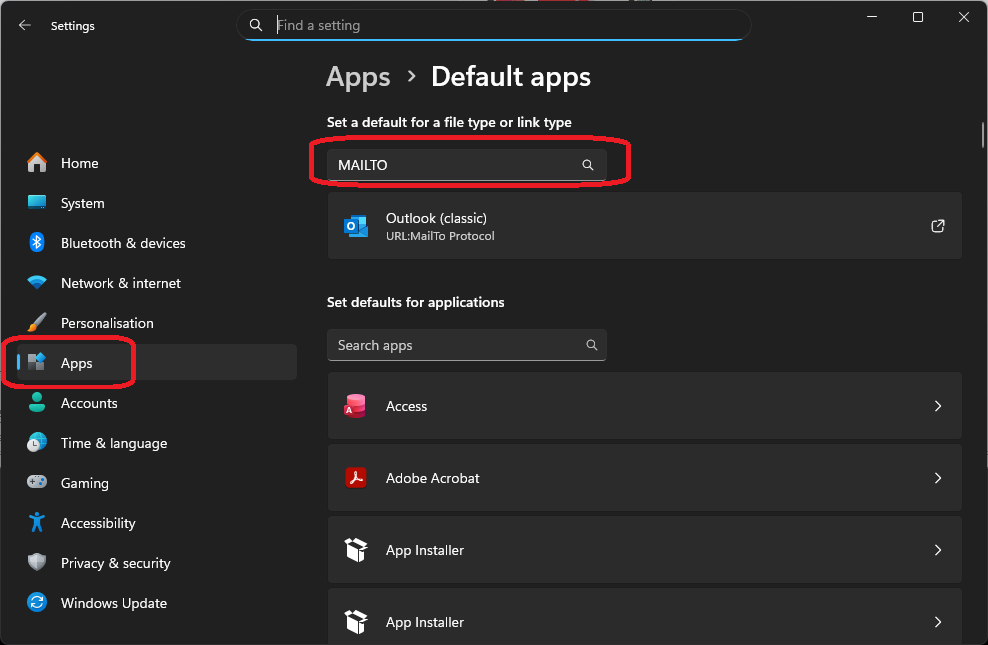
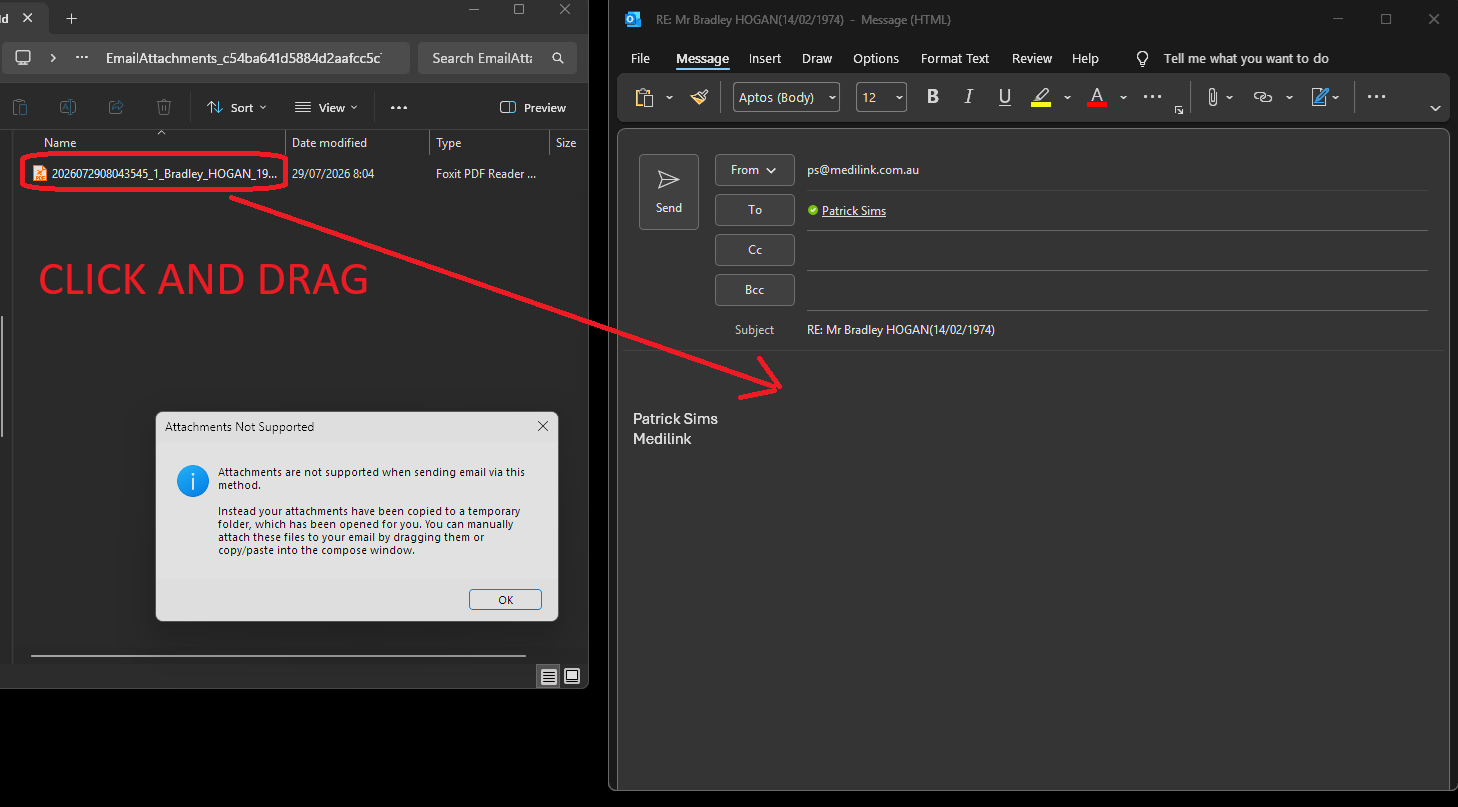
This uses the Windows program that is associated with the "mailto" link. You can check/modify this in the Windows Settings > Apps > Default Apps then type MAILTO in the top search box. It won't let you send attachments from Medilink directly but we have added a feature that will pop up the files for you to click and drag in.